
FocuSee
Paid
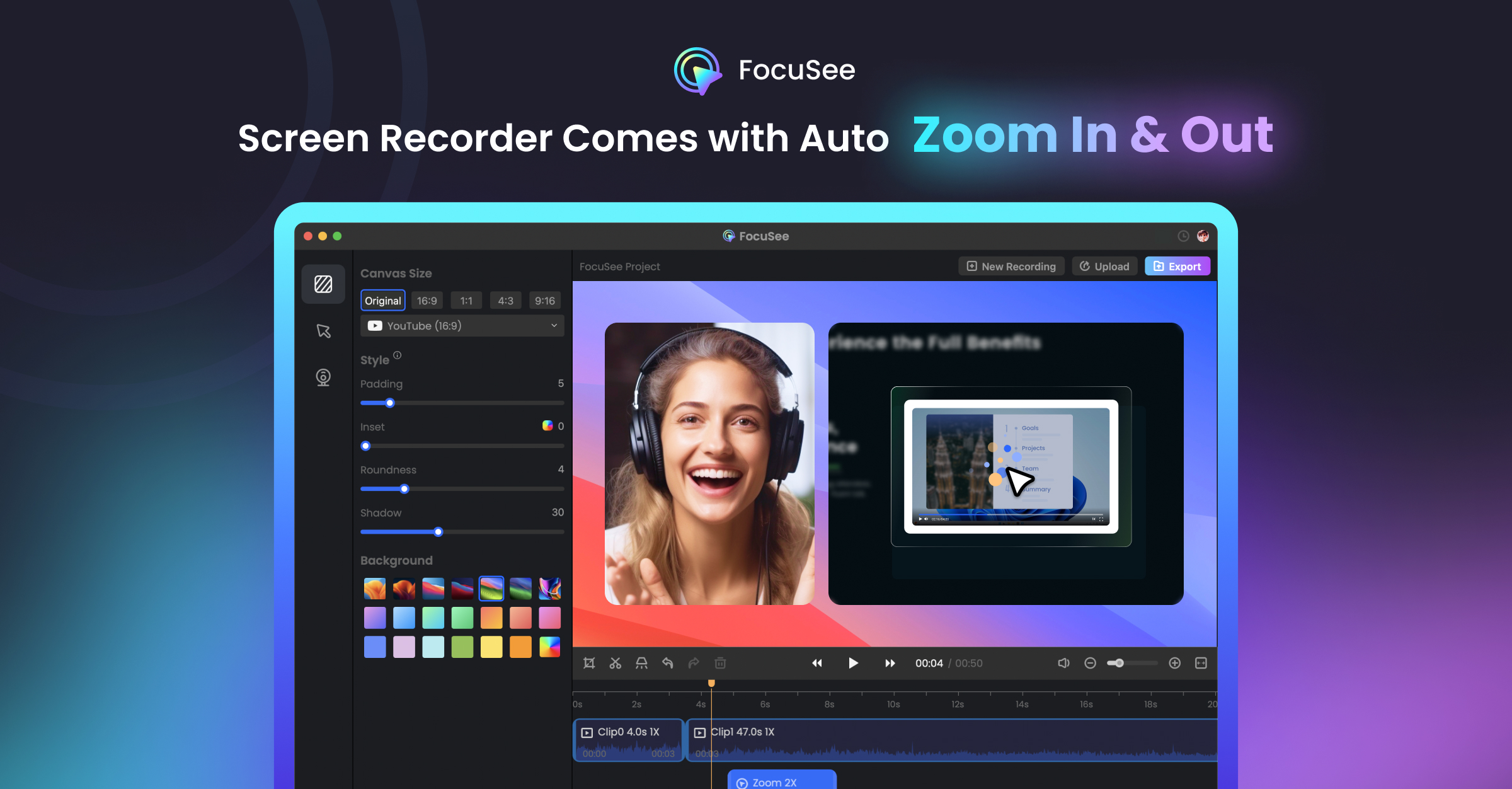
Record your screen and let AI automatically add zoom effects, cursor tracking, subtitles, noise-reduced audio, and platform-optimized exports without manual editing.
About
FocuSee is a screen recorder in the video editing space. It records your screen, then adds zooms, cursor effects, and polish automatically.
The AI handles the boring parts: following your clicks with smooth zooms, cleaning up audio, generating subtitles, and even replacing your face with a virtual avatar if you want.
It runs on Windows and Mac. The pricing starts around $25, with lifetime deals sometimes available.
Open it if you need quick tutorials without learning a full editor. Skip it if you need precise control over every cut.
Who FocuSee is best for
It fits when speed matters more than perfection.
- YouTube tutorial creators who prioritize speed over perfection: You hit record and get a polished-looking video without keyframing zooms.
- Windows users needing Screen Studio-like features: You get auto-zoom and motion blur on a PC, not just Mac.
- Students and beginners wanting simple editing without learning curves: The interface is straightforward; you export without touching a complex timeline.
- Quick content producers who export locally not to cloud: You avoid the slow cloud upload problems that plague some users.
- Users uncomfortable showing their face on camera: The AI avatar and background removal let you present without being on screen.
- Software developers making changelog demos: Auto-zoom follows your cursor through code, keeping viewers focused.
- Data scientists demoing Jupyter notebooks: You record alongside your IDE without crashes or heavy resource use.
- Content creators on a budget: Lifetime deals around $39 beat subscription costs for occasional use.
- Solo creators needing quick social-ready content: Presets for TikTok, YouTube, and LinkedIn aspect ratios save reformatting time.
Best things about FocuSee
These are the parts that keep you coming back after the novelty wears off.
- Auto-zoom and cursor tracking: The software follows your clicks and applies smooth zooms automatically. You skip hours of manual keyframing.
- Clean cursor effects: Spotlight, ring animations, and click highlights help viewers follow along. You look more polished without extra work.
- Stable performance: It runs light alongside your browser and IDE. You record without crashes or export hangs.
- Cross-platform support: You use the same workflow on Windows and Mac. Team members on different systems stay compatible.
- Canvas backgrounds and device frames: You export vertical videos with blurred backdrops for social platforms without separate design work.
How you use FocuSee
The workflow is built around recording first, polishing after.
- Choose your layout: screen only, webcam corner, or side-by-side.
- Hit record and do your demo or tutorial normally.
- Stop recording and let the AI apply zooms, effects, and captions.
- Tweak the auto-edits if needed: adjust zoom timing, fix subtitles, or change cursor style.
- Export to MP4 or GIF with presets for your platform.
Why you should ignore it
Skip it when these limits block your work.
- Slow exports: Cloud exports can take hours; even local exports run at 1x real-time speed. You wait longer than the recording itself.
- Audio sync issues: Cuts after recording can desync audio and video, especially with AI features enabled. You may need to re-record.
- Limited timeline control: No transitions, gap clips, or independent audio editing. You cannot fine-tune like in a full editor.
- Cancellation headaches: Users report difficult cancellation and immediate access loss despite prepaid time. Plan your trial carefully.
- Windows polish gap: The Mac version runs smoother; Windows users report more bugs and heating issues.