
Canva AI Photo Editor
Freemium
Edit photos in a browser using AI tools to add, remove, or replace elements with text prompts, remove backgrounds, enhance resolution, and animate images to video.
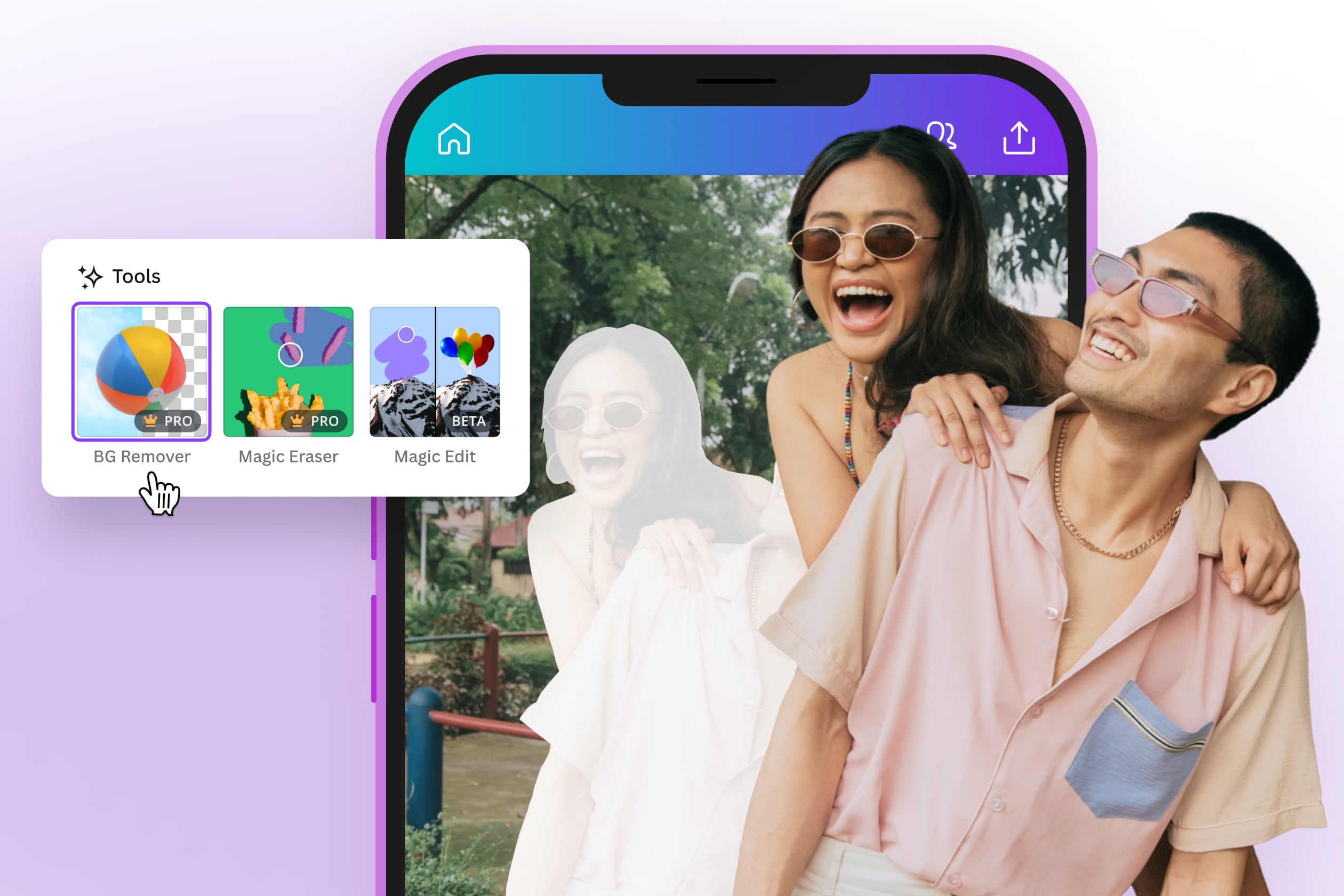
About
Canva AI Photo Editor sits inside the same Canva window you already know. It runs in your browser and works offline for basic edits like cropping and filters.
The tool helps you add, remove, or swap parts of an image by typing what you want. No design degree needed. You brush an area, describe the change, and the AI fills it in.
This is image editing for people who want results without learning curves. It is not for pixel-perfect retouching or video work that needs to hold up under scrutiny.
Open it if you need quick, editable visuals without leaving your browser. Skip it if you need video editing that works reliably or pro-grade precision.
Who Canva AI Photo Editor is best for
These are the people who get the most use out of it.
- Beginners with no design experience: The interface never asks you to learn design rules. You point, click, and get something usable.
- Social media content creators needing quick turnaround: Static graphics go from idea to post in minutes. Templates and AI tools keep you moving.
- Small business owners creating flyers and simple marketing materials: Professional-looking results without hiring help. The free tier covers most basics.
- Teams wanting integrated content management and approvals: Files live in one place. Everyone can edit without fear of breaking layouts.
- Marketers shipping social posts and presentations regularly: Magic Design kills blank-canvas anxiety. You describe what you want, pick from three layouts, and stay editable.
- Students and educators building presentations and school projects: Thousands of templates and a huge font library make schoolwork look polished fast.
- Founders who care more about shipping than pixel perfection: Speed beats precision here. You get to 80% done and move on.
- Casual creators needing quick, stylized visuals: Playful aesthetics work well. The preset styles handle the look so you don't have to.
- Users already embedded in Canva ecosystem: No new login, no tab switching. The AI tools appear where you already work.
- Users needing offline capability for basic edits: Crop, flip, and filter without signal. The workflow stays alive on planes or spotty wifi.
Best things about Canva AI Photo Editor
These are the parts you reach for again.
- One-click background removal: Paste an image, click once, done. No round-trip to Photoshop. It works clean about 85% of the time.
- Magic Edit for adding and replacing elements: Brush the area, type what you want, and the AI fills it. You stay in control of where changes happen.
- Magic Design generates editable starting points: Describe your project, get three layouts. Everything stays fully editable—no locked layers to fight.
- No separate onboarding: The AI features are already there when you log in. You don't hunt for them or install anything new.
- Background Generator from text prompts: Type a scene, get a new backdrop. Fast way to change mood without reshooting.
- Offline editing for basics: Crop, filter, and adjust without connection. Keeps small tasks moving anywhere.
How you use Canva AI Photo Editor
The path is direct.
- Upload or paste your image onto a Canva canvas.
- Click "Edit image" and choose your AI tool—Magic Edit, Magic Eraser, or Background Remover.
- Brush the area you want to change or remove.
- Type a description of what you want added or replaced.
- Pick from the results and keep editing normally.
Why you should ignore it
Skip it when these limits matter to you.
- Video editing is broken: Pixelated output, laggy playback, audio sync failures, and crashes with larger files. Use something else for video.
- No fine-grained AI controls: You cannot adjust prompt strength or seed values. When the AI mangles a hand, you just re-roll and hope.
- Free credits run out fast: 50 lifetime AI image credits deplete quickly. Real use pushes you toward paid plans.
- Photorealistic generation often fails: Distorted faces and creepy results appear often. The stylized presets work better than realism.
- Background remover misses tricky edges: About 15% of the time you will need workarounds. Fine hair and complex edges still fight back.
- Pro required for full access: Watermark removal, unlimited AI generations, and high-res exports sit behind the paywall.